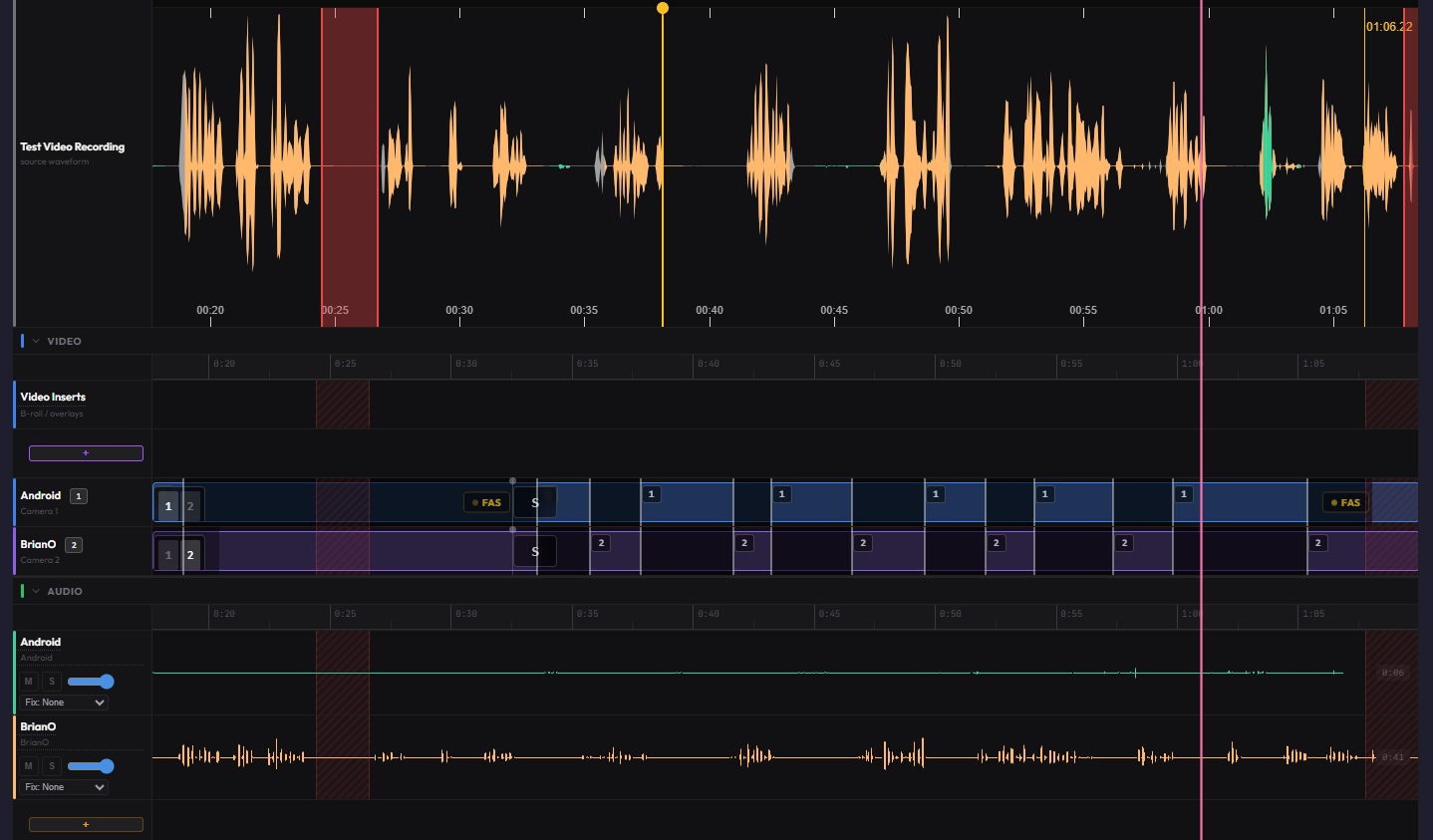
The ShowMuse editor started as a simple transcript word-level editor with a waveform. That was fine and the free version is still available in the tools section of the site before login...
...but for multiple cameras, inserting intros, adding music, the old interface wasn't going to get me there - so I've rebuilt the DAW timeline.
My hope is that if you've used GarageBand or any digital audio workstation (DAW), this will feel familiar.
Each track type gets its own swim lane: source video, video inserts, audio inserts, per-speaker audio tracks. Labels and content sit side by side in each row, so everything stays aligned as you scroll.
The bar at the top gives you play/pause, timecode, cut controls, and zoom. No hunting for buttons scattered across the interface.
The Media Library panel shows your episode's source files plus any show-level assets: intros, outros, music beds, sound effects. Drag a file onto an insert track to drop it into the timeline at the playhead position. Pin the library open if you're doing a lot of insert work, or close it to get the full timeline width back.
As far as multi-cam layouts, ShowMuse now has several layout types:
1. Single for solo shots or featured views
2. Side-by-side (horizontal or vertical) for conversations
3. Picture-in-picture for a main speaker with a reaction inset
4. 2+1 for a main view plus two stacked panels
5. Mobile for vertical-native output (Shorts, Reels, TikTok)
Press B to cut a new layout segment at the playhead. Shift+B cycles through layout types. Shift+1/2/3 swaps which camera fills which slot.
Each segment gets a layout badge showing the active type and camera assignments. Double-click a badge to override just that segment's layout without changing the rest of the episode. Or set an episode-wide default and only override where you need to.
Toggle FAS with the F key. It reads the transcript, maps speakers to cameras, and auto-switches the active camera based on who's talking. There's a 2-second debounce so it doesn't jump around during quick back-and-forth. If you manually set a camera for a specific moment, your override takes priority.
For a two-person podcast, FAS basically handles the entire camera cut. You set it and review the result. For three or more cameras, you might tweak a few switches, but it gets you 80% of the way there.
Both features are live now for all plans.